OpenClaw has taken the developer world by storm. With over 250,000 GitHub stars and growing, it has become the most popular open-source AI agent platform in 2026. Originally launched as Clawdbot in November 2025, then briefly renamed to Moltbot, it settled on the OpenClaw name in late January 2026 and has not slowed down since.
What makes OpenClaw stand out is its local-first approach. Your data stays on your machine, stored as simple Markdown files. It connects through the messaging apps you already use -- WhatsApp, Telegram, Slack, Discord, and 20+ others -- giving you a personal AI assistant that runs entirely under your control.
In this guide, we will walk through every major installation method so you can pick the one that fits your setup.
Prerequisites
Before installing OpenClaw, make sure your system meets these requirements:
| Requirement | Details |
|---|---|
| Node.js | v24 recommended, v22 LTS (22.16+) supported |
| RAM | 1 GB minimum for the gateway, 4 GB recommended |
| Port | 18789 must be available |
| OS | macOS, Linux, or Windows via WSL2 |
You will also need an API key from a supported model provider. OpenClaw works with Anthropic Claude, OpenRouter, Google Gemini, and local models through Ollama (though local models require 48 GB+ VRAM for larger parameter counts).
Windows Users
OpenClaw does not run natively on Windows. You will need to use WSL2 (Windows Subsystem for Linux). If you do not have WSL2 set up, run wsl --install in an elevated PowerShell terminal first, then follow the Linux instructions from within your WSL2 environment.
Option 1: One-Line Installer (Recommended)
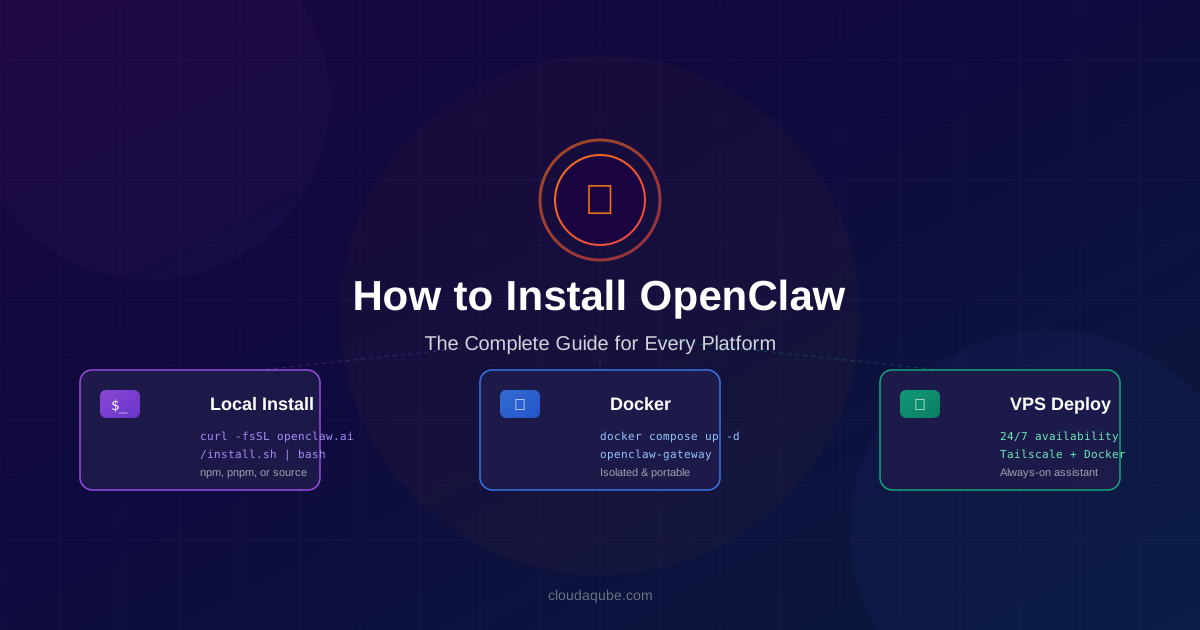
The fastest way to get started. The installer script detects your system, installs Node.js if needed, and walks you through initial configuration.
macOS and Linux:
curl -fsSL https://openclaw.ai/install.sh | bash
Windows PowerShell (installs into WSL2):
iwr -useb https://openclaw.ai/install.ps1 | iex
That is it. The script handles everything including setting up the background daemon. Once it finishes, OpenClaw is running and ready for you to connect your first messaging platform.
If you want to skip the interactive onboarding wizard and configure things manually later, add the --no-onboard flag:
curl -fsSL https://openclaw.ai/install.sh | bash -s -- --no-onboard
Option 2: Install via npm or pnpm
If you prefer managing your own Node.js installation, you can install OpenClaw as a global package.
Using npm:
npm install -g openclaw@latest
openclaw onboard --install-daemon
Using pnpm:
pnpm add -g openclaw@latest
pnpm approve-builds -g
openclaw onboard --install-daemon
The --install-daemon flag registers OpenClaw as a background service (systemd on Linux, launchd on macOS) so it starts automatically on boot and survives terminal sessions closing.
Build Error Fix
If you encounter sharp build errors related to global libvips during installation, set this environment variable before running the install command:
SHARP_IGNORE_GLOBAL_LIBVIPS=1 npm install -g openclaw@latest
Option 3: Build from Source
Building from source gives you the latest development changes and the ability to modify OpenClaw's core code.
git clone https://github.com/openclaw/openclaw.git
cd openclaw
pnpm install
pnpm ui:build
pnpm build
pnpm link --global
openclaw onboard --install-daemon
This method is ideal if you want to contribute to the project or need features that have not been released yet. Keep in mind that the main branch may contain unstable changes.
If you just want the latest main branch without building from source, you can install directly from GitHub:
npm install -g github:openclaw/openclaw#main
Option 4: Docker Deployment
If you have never used Docker before, think of it as a way to run software inside its own sealed box. That box contains everything the software needs -- the operating system, libraries, and configuration -- so it works the same way on every machine. You do not need to install Node.js, worry about version conflicts, or clean up afterward. When you are done, you delete the box and your system is untouched.
Docker is the best choice for running OpenClaw in an isolated environment, and it is the recommended approach for VPS and homelab setups.
Step 1: Install Docker
Before running OpenClaw in Docker, you need Docker itself installed on your machine.
macOS and Windows -- Install Docker Desktop
Docker Desktop is a free application that gives you everything you need in one download. It includes the Docker engine, a graphical dashboard for managing your containers, and automatic updates.
- Go to docker.com/products/docker-desktop and download the installer for your operating system
- Run the installer and follow the on-screen steps
- On macOS, drag Docker to your Applications folder and open it. On Windows, the installer handles this automatically
- Docker Desktop will ask you to create a free Docker Hub account -- this is optional but useful for pulling pre-built images
- Wait for the Docker icon in your system tray or menu bar to show "Docker Desktop is running"
Verify the installation by opening a terminal and running:
docker --version
docker compose version
Both commands should return version numbers. If you see "command not found," restart your terminal or reboot your machine.
Docker Desktop Settings
After installing Docker Desktop, open its settings and allocate at least 8 GB of RAM to Docker. On macOS, go to Settings then Resources. On Windows, Docker uses WSL2 by default and shares your system memory automatically. If the build process seems slow or crashes, increasing the memory limit usually fixes it.
Linux -- Install Docker Engine
On Linux, you install Docker Engine directly rather than Docker Desktop (though a Desktop version for Linux does exist if you prefer a GUI).
For Ubuntu or Debian:
sudo apt update
sudo apt install -y ca-certificates curl gnupg
sudo install -m 0755 -d /etc/apt/keyrings
curl -fsSL https://download.docker.com/linux/ubuntu/gpg | sudo gpg --dearmor -o /etc/apt/keyrings/docker.gpg
echo "deb [arch=$(dpkg --print-architecture) signed-by=/etc/apt/keyrings/docker.gpg] https://download.docker.com/linux/ubuntu $(lsb_release -cs) stable" | sudo tee /etc/apt/sources.list.d/docker.list > /dev/null
sudo apt update
sudo apt install -y docker-ce docker-ce-cli containerd.io docker-compose-plugin
Then add your user to the docker group so you do not need sudo for every command:
sudo usermod -aG docker $USER
newgrp docker
Verify with:
docker --version
docker compose version
Step 2: Run OpenClaw with Docker
Now that Docker is installed, you can deploy OpenClaw.
Quick Start with Setup Script
The project includes a setup script that handles the Docker configuration for you:
git clone https://github.com/openclaw/openclaw
cd openclaw
./docker-setup.sh
sudo chown -R 1000:1000 ~/.openclaw
Manual Docker Build
If you prefer more control over the build process:
docker build -t openclaw:local -f Dockerfile .
docker compose run --rm openclaw-cli onboard
docker compose up -d openclaw-gateway
Using a Pre-Built Image
Skip the local build entirely and pull the official image:
export OPENCLAW_IMAGE="ghcr.io/openclaw/openclaw:latest"
./docker-setup.sh
Understanding Docker Concepts
Here are a few terms you will encounter when working with Docker:
- Image: A snapshot of everything the application needs to run. Think of it as a recipe
- Container: A running instance of an image. Think of it as the meal made from the recipe. You can run multiple containers from the same image
- Volume: A folder on your computer that is shared with the container. This is how OpenClaw saves your configuration and data so it survives container restarts
- Docker Compose: A tool that lets you define and run multi-container setups with a single configuration file. OpenClaw uses this to coordinate its services
When you run docker compose up -d, Docker reads the docker-compose.yml file in the project, pulls or builds the required images, creates containers, and starts them in the background. The -d flag means "detached" -- it runs in the background so you get your terminal back.
To see running containers, use docker ps. To stop OpenClaw, run docker compose down from the same directory.
Key Docker Environment Variables
| Variable | Purpose |
|---|---|
OPENCLAW_IMAGE | Use a remote image instead of building locally |
OPENCLAW_DOCKER_APT_PACKAGES | Additional system packages to install |
OPENCLAW_EXTENSIONS | Pre-install extension dependencies |
OPENCLAW_EXTRA_MOUNTS | Additional bind mounts for host directories |
OPENCLAW_SANDBOX | Enable sandboxed execution mode |
OPENCLAW_GATEWAY_BIND | Network binding: lan or loopback |
By default, Docker mounts ~/.openclaw/ for configuration and ~/.openclaw/workspace for your workspace data. Both persist across container restarts.
Docker Resource Requirements
The Docker build process requires at least 8 GB of RAM and 1 vCPU. If you are running on a resource-constrained machine, consider using the pre-built image instead of building locally.
Option 5: VPS Deployment
Running OpenClaw on a VPS gives you a 24/7 AI assistant accessible from anywhere. Here is how to set it up on a fresh server.
Step 1: Prepare the Server
Start with a clean Ubuntu 22.04+ or Debian 12+ installation. If your VPS has less than 2 GB of RAM, create a swap file first:
sudo fallocate -l 4G /swapfile
sudo chmod 600 /swapfile
sudo mkswap /swapfile
sudo swapon /swapfile
echo '/swapfile none swap sw 0 0' | sudo tee -a /etc/fstab
The last line makes the swap persistent across reboots.
Step 2: Install OpenClaw
Use the one-line installer, which works on any Linux distribution:
curl -fsSL https://openclaw.ai/install.sh | bash
Or deploy with Docker for better isolation:
git clone https://github.com/openclaw/openclaw
cd openclaw
./docker-setup.sh
sudo chown -R 1000:1000 ~/.openclaw
Step 3: Secure the Installation
On a VPS, security is critical. OpenClaw's Control UI listens on port 18789 by default. Never expose this port directly to the internet.
Option A: Use Tailscale (recommended)
Add this to your OpenClaw config to serve the Control UI exclusively over Tailscale:
gateway:
  tailscale:
    mode: "serve"
Option B: Use a Reverse Proxy with Authentication
Set up nginx with basic authentication or OAuth2 in front of the Control UI port.
Option C: Firewall Rules
At minimum, block the port from external access:
sudo ufw deny 18789
sudo ufw enable
Step 4: Enable Explicit Consent Mode
This is critical on any server deployment. It prevents OpenClaw from executing shell commands without your approval:
exec.ask: "on"
Security Warning
An analysis of the Clawhub Skill marketplace found that roughly 10% of community-created skills contained malicious payloads. Always enable explicit consent mode on server deployments and carefully review any third-party skills before installing them.
Option 6: Alternative Methods
OpenClaw also supports several other installation methods for specialized setups:
- Podman: For rootless container environments, use the same Docker compose files with Podman
- Nix: Declarative installation via Nix flakes for reproducible environments
- Ansible: Fleet provisioning for managing multiple OpenClaw instances across servers
- Bun: CLI-only mode using the Bun runtime as an alternative to Node.js
Post-Installation Verification
Regardless of which method you chose, verify your installation with these commands:
openclaw doctor    # Run automated health checks
openclaw status    # Check if the gateway is running
openclaw dashboard # Open the web-based control UI
If something is not working, check the logs:
openclaw logs --follow
Or verify that port 18789 is not blocked by another process:
sudo lsof -i :18789
You can also hit the health endpoint directly:
curl http://127.0.0.1:18789/healthz
Connecting Your First Messaging Platform
Once OpenClaw is running, you need to connect at least one messaging platform. Here are two popular options:
Telegram:
- Open Telegram and message @BotFather
- Create a new bot with
/newbotand save the token - In OpenClaw, run the pairing command with the code provided during onboarding
Discord:
- Go to the Discord Developer Portal
- Create a new application and add a bot
- Enable the Message Content intent under the bot settings
- Invite the bot to your server and allowlist your user ID in OpenClaw
Full setup instructions for all 20+ supported platforms are available in the official documentation.
Which Installation Method Should You Choose?
| Method | Best For | Difficulty |
|---|---|---|
| One-line installer | Getting started quickly on a personal machine | Easy |
| npm/pnpm | Developers who manage their own Node.js setup | Easy |
| Build from source | Contributors and early adopters | Moderate |
| Docker | Server deployments and isolated environments | Moderate |
| VPS | 24/7 availability from anywhere | Advanced |
For most people, the one-line installer is the way to go. If you want to run OpenClaw around the clock without keeping your laptop open, go with Docker on a VPS.
Related Projects Worth Checking Out
The OpenClaw ecosystem is growing fast. Here are some notable projects built around it:
- IronClaw -- A Rust reimplementation focused on privacy and security
- GitClaw -- Runs OpenClaw entirely through GitHub Issues and Actions, no servers needed
- TenacitOS -- A real-time dashboard for managing multiple OpenClaw instances
- MoltWorker -- Run OpenClaw on Cloudflare Workers for serverless deployment
Wrapping Up
OpenClaw is one of the most exciting open-source projects to emerge in 2026. Whether you install it locally for personal use or deploy it on a VPS for always-on availability, the setup process is straightforward and well-documented.
The key decisions are where you want to run it (local vs server) and how much isolation you want (bare metal vs Docker). Start with the one-line installer to get familiar with how it works, then graduate to a Docker-based VPS deployment when you are ready for a production setup.
Want to practice this hands-on?
CloudaQube generates complete labs from a simple description. Try it free.
Get Started Free